Advanced and Saved Search
Keyword Search provides quick access to the most common features to search and Filter the OSDP records. However, when access to more extensive search and request management capabilities is required, additional features can be accessed via the Advanced and Saved Searches link from the Search page. Here you can:
- Access all OSDP Metadata Fields in your queries
- Build multi-part queries with enhanced conditions
- Save and manage your library of reusable queries
- Blend Saved Queries with other Keyword Search filters, for a consolidated Search Result Set.
- Back up search requests, or use search requests across multiple devices
Click on the tabs below to learn more about Advanced Search.
Request Search
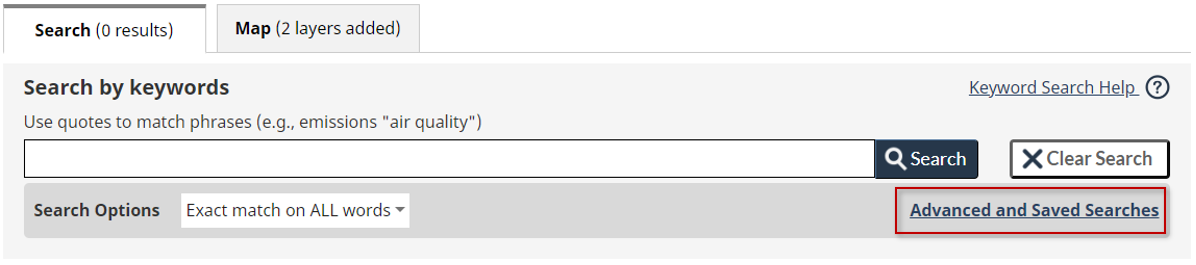
1. Access Advanced and Saved Searches
To request re-use of an existing saved search, first click the Advanced and Saved Searches link from the Search page to access the Advanced Search dialog.
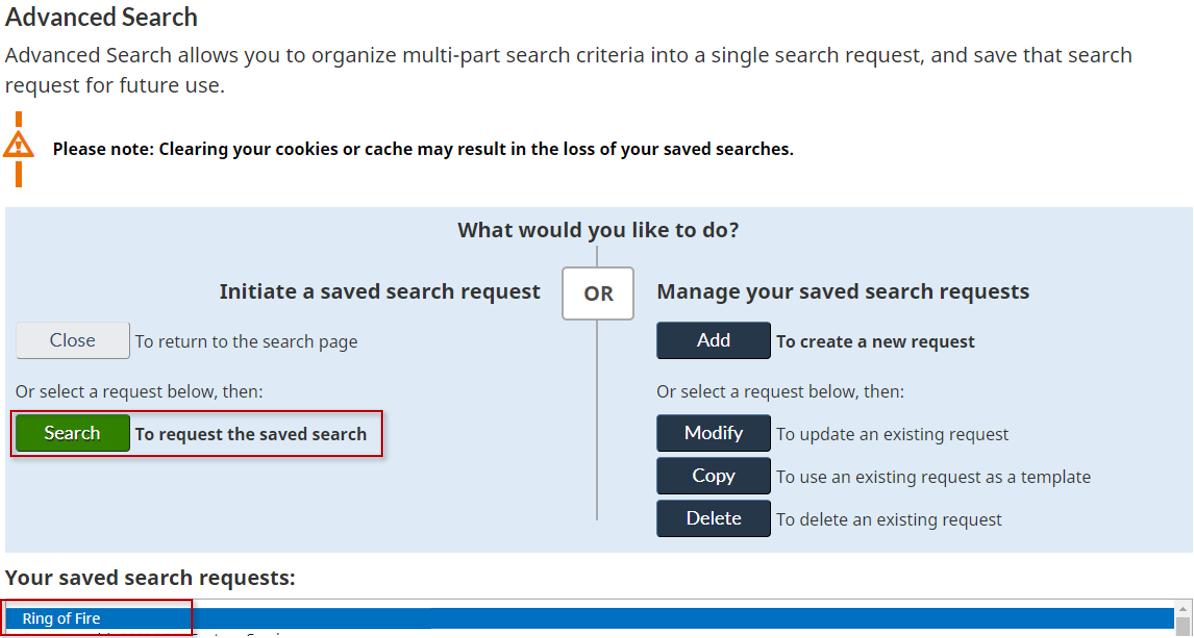
2. Select the Saved Search
When presented with the Advanced Search dialog, select the previously created search request from the Your saved search requests box, then click the Search button to initiate the new search. Alternatively, the Close button can be clicked to simply return to Keyword Search without taking further action.
3. Advanced Search Mode Initiated
On return to the Search page, the search block is now updated to reflect that you’re in Advanced Search mode, the list of available Saved Searches is now available in a new drop-down menu, the chosen saved search is selected, and the Search Result Set is updated with the results of the new query.

4. Apply additional filters or switch saved search
On the Search page you still have full access to the standard Filters which can be combined with the Saved Search to further filter the list.
Search Tip
Creating a saved search request when you have a common set of criteria you use in many queries is a great way to start with a specific baseline that you vary slightly in many searches with the core Filters.
When the Search page is in the Advanced Search mode, different Saved searches can be accessed from the Select Saved Search drop-down, which results in an immediate update to the Search Result Set.
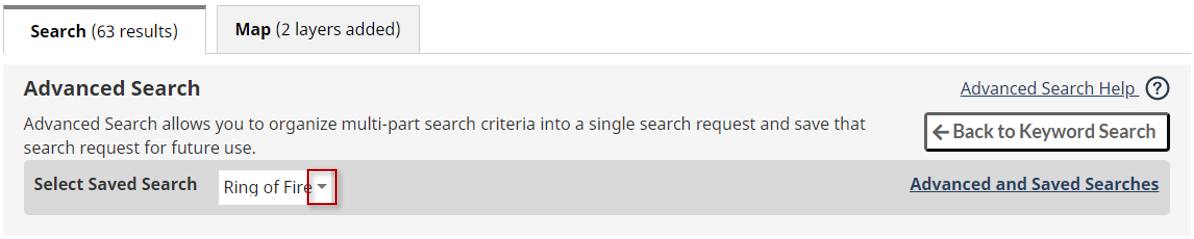
Clicking on the Back to Keyword Search button at any time will return you to Keyword Search mode.
Manage Saved Search Requests
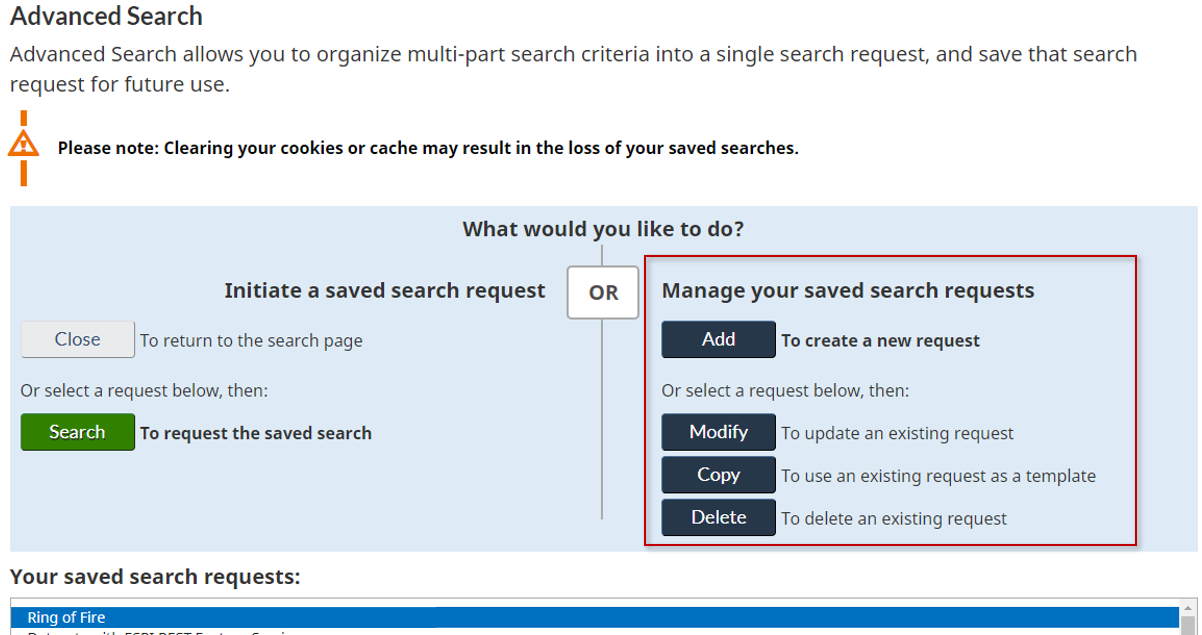
From the Advanced Search home page you can Request an Advanced Search be initiated on the left side of the page, or manage the previously created saved search requests with the functions available on the right side.
Using the management functions, you can either create a new search request by using the Add button, or Modify, Copy, or Delete a search request that’s selected in Your saved search request list below it. Double-clicking on a saved search in the list is also a quick way to initiate a Modify request on it.
You can return to the Search page at any time by clicking the Close button.
Configure Options
Under the Manage Configuration Options heading at the bottom of the Advanced Search Home Page there’s a Configure button that can be clicked to manage the Advanced Search Configuration options.
Saving Queries Locally
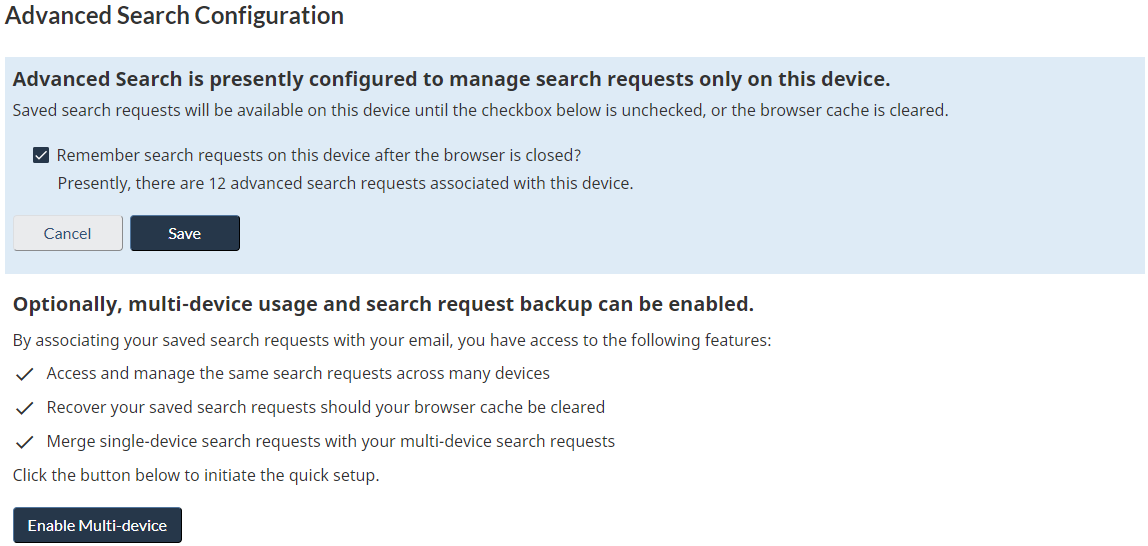
By default, the Advanced Search Requests you create and save within your current browser session are stored to your local device so that they are available to you the next time you return to OSDP.
If you’d prefer that your Saved Search Requests not be available on this device the next time OSDP is visited (e.g., you’re using a public computer), deselect the checkbox starting with Remember search requests…, and click the Save button. Alternatively, the Cancel button can be pressed to return to the Advanced Search Home Page without taking any action.
Option selections are committed after the browser session is closed, leaving you the opportunity to reassess your selections while the browser tab remains open. Once deleted, the saved search requests cannot be recovered.
Caution
Note that should your browser cache be cleared, you may lose your Saved Search Requests. Consider enabling multi-device support and cloud backup if you’d prefer to remove this as a risk.
Enabling Multi-Device Support and Cloud Backup
Click the Enable Multi-device button at the bottom of the dialog to initiate the quick setup to enable cloud backups and the ability to use the same Saved Search Requests on multiple devices.
The process is simple:
- You provide an email address you wish to use for recovery.
- A code is sent to the provided email address that you paste into the dialog.
- You have the option of merging the local device’s saved requests with your existing Saved Search Requests.
- You’re set up!
Repeat this process on any additional devices you would like to associate.
Privacy Note
Your email is only captured by the local process on your device for the purpose of establishing its existence and is not stored on OSDP Servers.
Removing Multi-Device Support
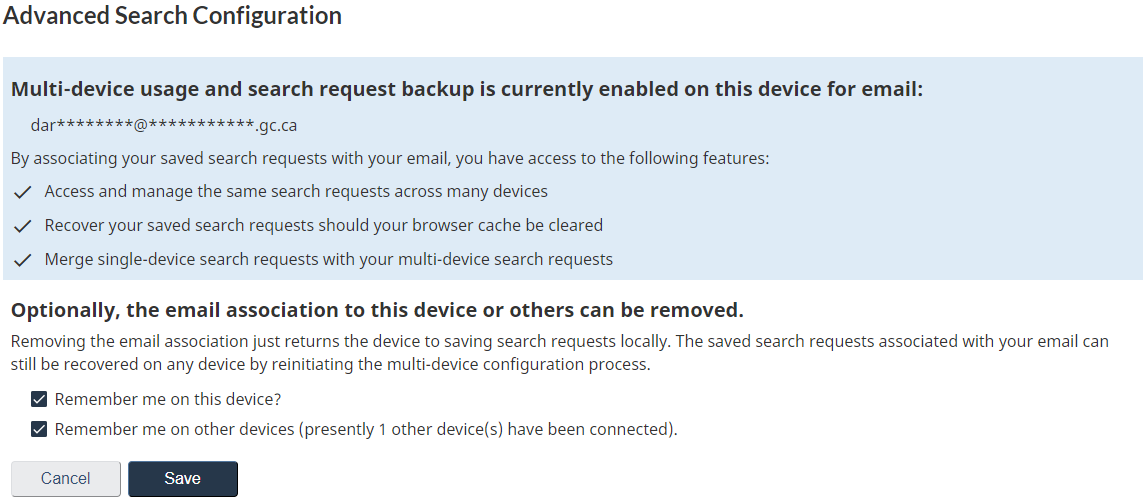
At any time, you can remotely remove sharing across devices by opening the Configuration dialog from an associated device. When a device is enabled for multi-device support, different options are now available to stop remembering your saved searches on the current device or all other devices.
Option selections are committed after the browser session is closed, leaving you the opportunity to reassess your selections while the browser tab remains open. Once deleted, the saved search requests cannot be recovered.
Build Search Request
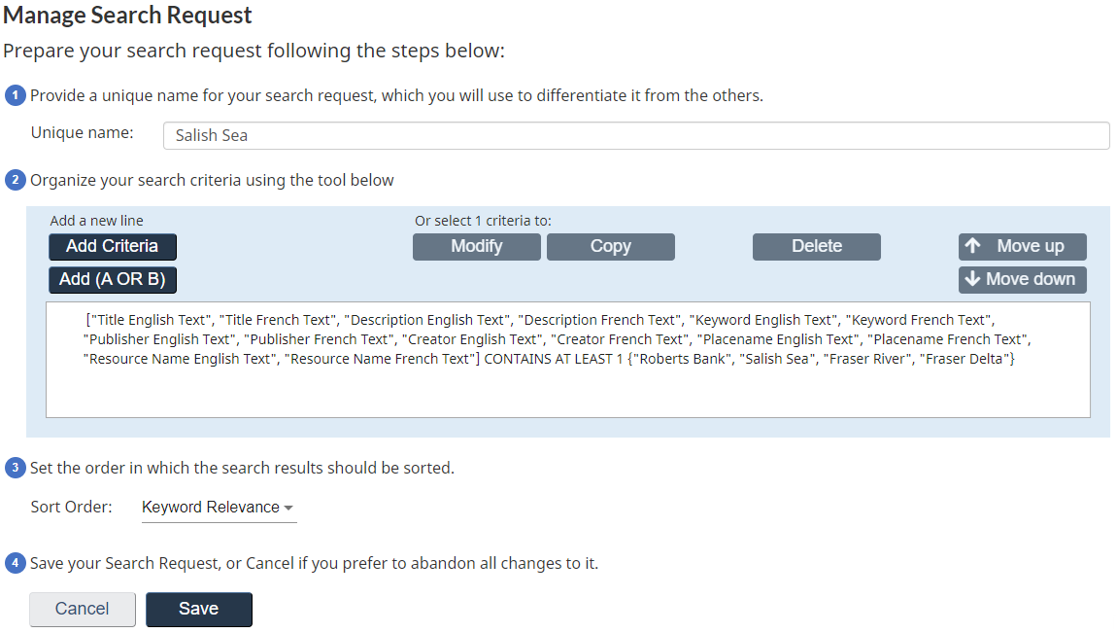
After clicking the Add button on the Advanced Search Home Page, creating a new Saved Search Request can be completed in 4 basic steps when the Manage Search Request page is presented.
- Give the search request a unique name.
- Add and rearrange as many Search Criteria as you’d like.
- Set the preferred Sort Order that the resulting Search Result Set should use.
- Save your new query, returning to the Advanced Search Home Page.
New search criteria are created by clicking the Add Criteria button, which initiates the Manage Search Criteria dialog to step you through the field selection, comparator, and values to use.
An “AND” comparator is applied between each search criteria as a default, while the Add (A OR B) button can be clicked to create brackets that can enclose 2 or more criteria separated by “OR” comparators. Each criteria can be selected to move them up or down in the list as appropriate.
Selected criteria can be modified by clicking the Modify button or double-clicking it, copied via the Copy button, and deleted via the Delete button.
Manage Search Criteria
Creating a Search Criteria is presented as a click-through process identifying the field(s) you’d like considered in your search criteria, setting the condition, and then choosing the values.
As described in the Field Glossary, OSDP has many different types of fields that require different types of values (e.g., text, codes, dates, map area, etc.). The click-through process simplifies this by providing the right types of condition and value tools after the field is selected.
Apart from Text fields that support a many-to-many comparison of fields to values, all other field types compare 1 field to 1-to-many values and require one less step (step 2). To show the full process of a many-to-many example, we’ll walk through the creation of a Search Criteria for a Text field.
On request to add a new search criteria, the Manage Search Criteria dialog is presented, showing the 5 steps to complete in the bar across the top.
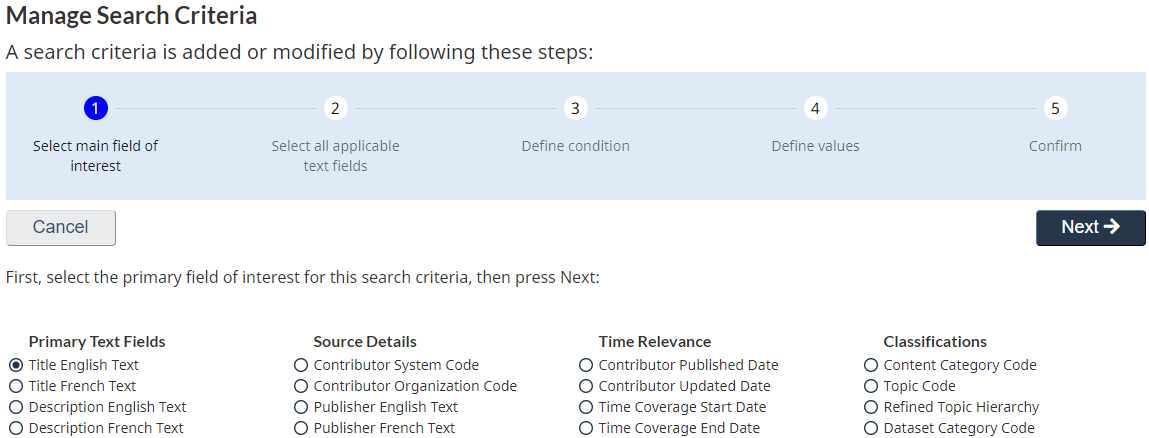
1. Select main field of interest
The first step is to select one field that will be the basis for this search criteria. Each field in the list is suffixed with the type of content it contains, providing an indication of what to expect in the steps that follow (e.g., Text will allow more selections, code values will support selection from lists, etc.).
Once a field is selected, click Next. For our example we’ll click the Title English Text field.
2. Select all applicable text fields
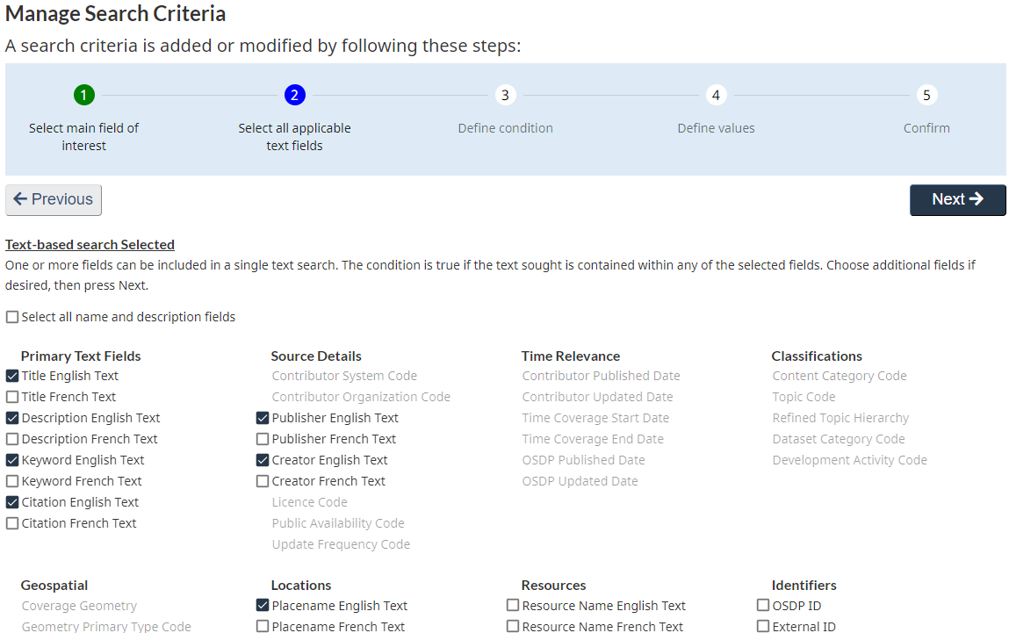
Being a text field, we’re given the opportunity to optionally select more than one field to be used in the comparison. If the field was any type other than Text, this step would have been skipped.
For our example, we’ll select the most common English text fields used to describe OSDP records, and then click Next.
3. Define Condition
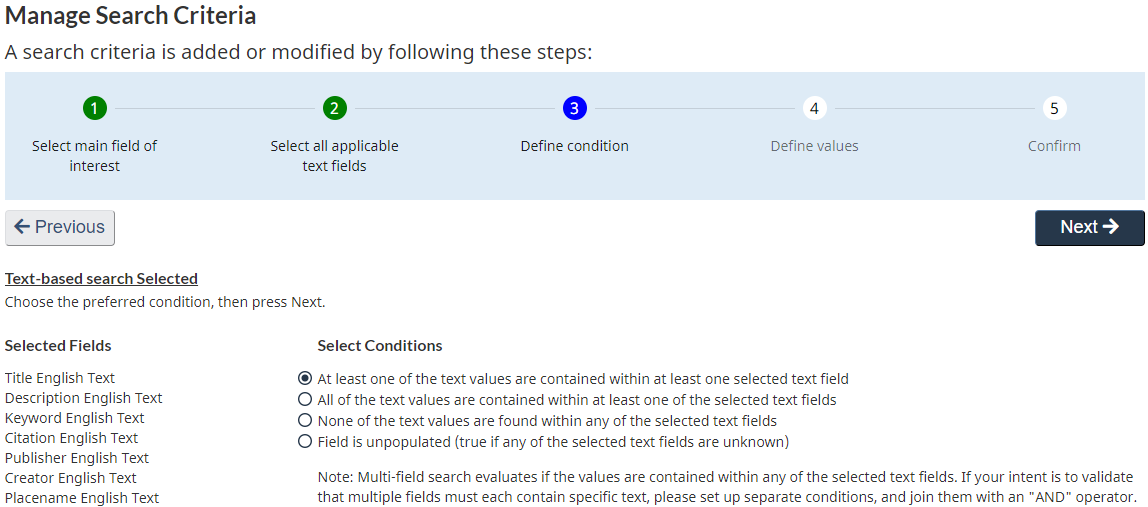
Based on this being a text comparison, 4 text-specific condition options are provided, requiring just a click to select the condition and then a click on the Next button.
Note
Advanced Search provides more options in the types of comparisons that can be performed, as compared the basic Filter options in Keyword Search.
4. Define Values
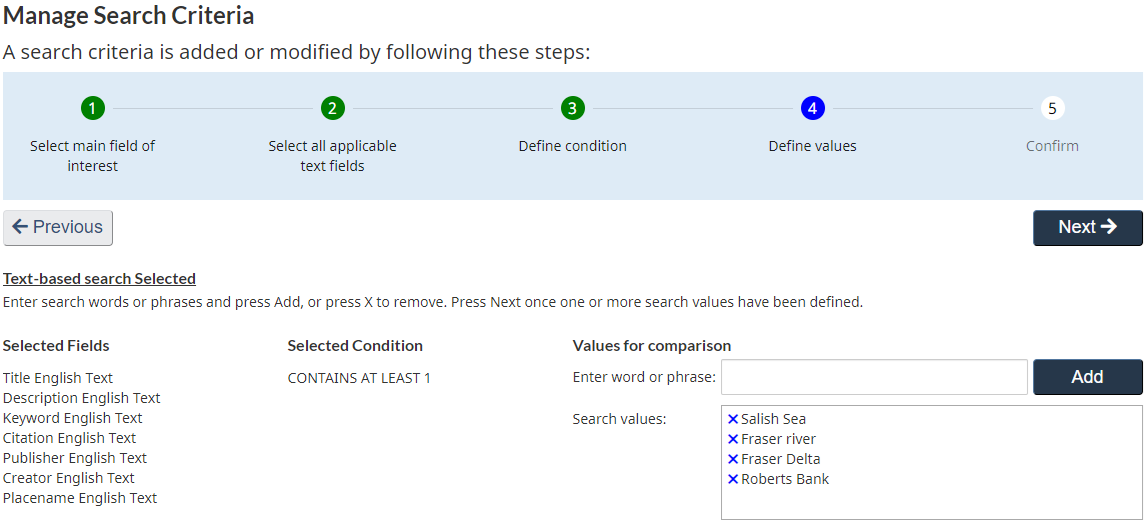
For our example, we consider a record to be a good candidate for our search if it has contents that match one of four phrases. In Advanced Search, these are expressed as different entries, each of which could be removed by clicking the X next to them.
Note
The equivalent representation when preparing these same keywords in Keyword Search would be “Salish sea” “Fraser river” “Fraser Delta” “Roberts Bank” since each of the 2-word phrases must be considered a single “word”.
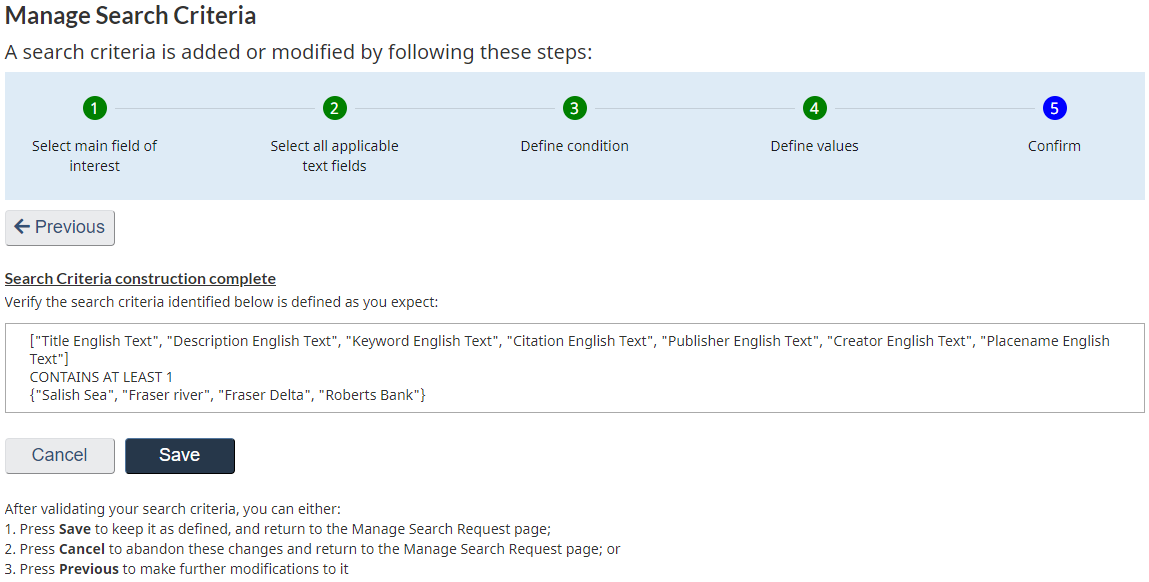
5. Confirm
The last step assembles the final result, which can be confirmed by clicking Save, cancelled in its entirety by clicking Cancel, or clicking Previous to go back and modify your selections. Note that all selections made during the process remain intact when navigating with the Previous/Next step buttons.
On clicking Save or Cancel, you are returned to the Manage Search Requests page.