
Search Result Set
After updating any search criteria (e.g., Keyword Search, Saved Search selection, or Filter) on the Search tab, or when initiated by an external request (e.g., Retrieve Mapped Records requested via Map Search):
- The Active Filters block is updated to reflect all the currently active search criteria.
- The search is reapplied, resulting in an updated set of records in the Search Result Set below the Management Bar.
- The Tabbed interface is updated to reflect the new record distribution.
Tabbed Interface
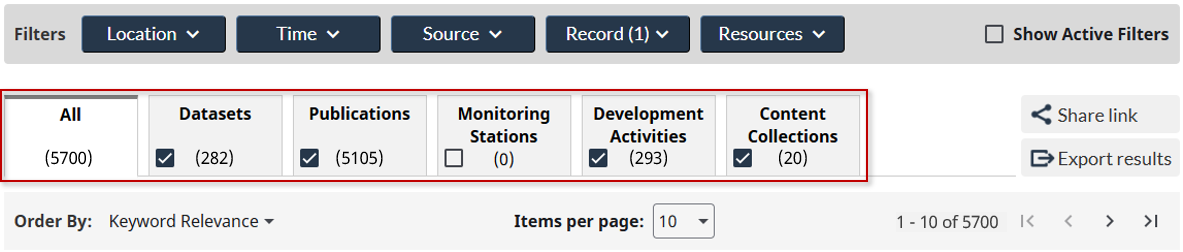
Tabbed Interface: The full list of records returned can be seen in a single list when the All tab is selected, while subsets of this list can be viewed by selecting the appropriate Content Categories tab.
Record Counts: The counts represented on the tabs reflect the number of related records included in this Search Result Set (e.g., in the view above, 5700 records were retrieved by the search, of which 282 were Datasets).
Note that the counts shown on the individual filter dropdowns similarly identify how many records in the current Search Result Set reference their criteria, as a proportion of the records seen in the All tab. (e.g., as a subset of the 5700, in this example).
Search Tip
The checkboxes on the tabs provide a quicker alternative to setting the Record > Content Category filter using the pop-up dialogue.
If you only want to see Filter tallies based on a single Content Category, apply a Content Category filter with only that group selected.
Management Bar
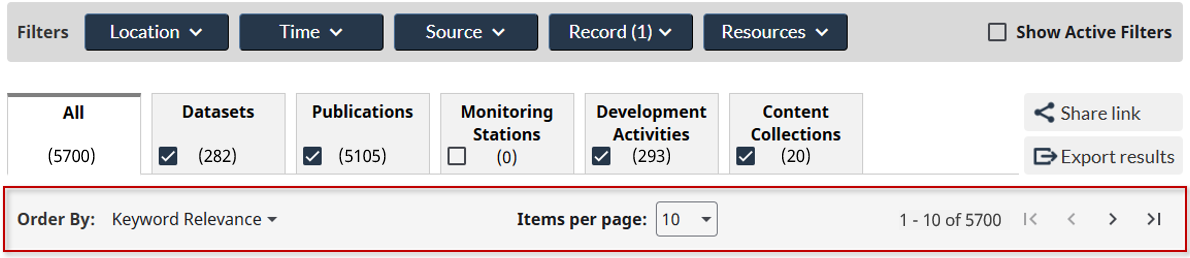
The Management Bar below the tabs provides additional tools for you to organize and manage the Search Result Set. Apart from the Order By option, for convenience the same bar also appears at the bottom of the page.
- Order By: Sets the order in which the returned list is sorted. Options are detailed below.
- Items Per Page: Sets the number of records to display per page (10, 50, or 100).
- Page Details: Provides a summary of which records are currently being viewed. Where you can think of records being numbered from 1 to the Total records in the search result, the numbers represent: Start record on this page – End record on this page of Total records.
- First-Previous-Next-Last Page icons: Click on these icons to navigate back and forth through the pages of content, noting that the Last Page icon is limited to work on lists that contain less than 10,000 records.
Sort order: The Order By option noted above allows you to control how the resulting list is ordered. It can be changed freely as needed while the search Keywords or Filters are being refined. There are a couple special sort orders like Keyword Relevance and Geographic Relevance that sequence the results based on the search engine’s scoring algorithm, so that the most relevant results are surfaced first in the list.
- Contributor Published: Descending sort on the Contributor Published date, sequencing by when the contributor first created the record. Note that relevant scientific publications could have been published in prior years, and only released as open access recently, so consider your use of this sort sequence with this in mind.
- Contributor Updated: Descending sort on the Contributor Updated date, sequencing by when the contributor last updated the record. i.e., prioritize latest updates from contributors.
- Contributor Time Coverage: Descending sort on contributor-provided Time Coverage Start and End dates, that indicates the period during which the content or analysis is relevant. Being optional metadata that’s not applicable or provided for all records, those missing Time Coverage fall to the bottom of the Search Result Set when using this sequencing.
- Geographic Relevance: Sorts records so that those whose point or polygon-based geometries are the closest match with a selected Geographic Location filter are seen at the top of the list. Generally, the records with smaller geometries closest to the center and CONTAINED WITHIN the search area score higher, larger polygons that are CONTAINED WITHIN the area score lower, followed by polygons that simply INTERSECT the search area (e.g., national scale dataset layer coverage). Records in the Search Result Set that are missing geometry fall to the bottom of the sort order.
- Keyword Relevance: Sorts records based on how well their content matched the criteria specified in the Active Filters block. Records that match on more than one word or have multiple references to the target terms will score higher and appear closer to the top of the list.
- OSDP Published: Descending sort on the OSDP Published date, identifying when the records were first added to OSDP. i.e., prioritize new content that you may not have seen yet.
- OSDP Updated: Descending sort on the OSDP Updated date, identifying when the records were last updated in OSDP. i.e., prioritize the most recent updates to OSDP records.
- Title Ascending: Ascending sort on Title.
- Title Descending: Descending sort on Title.
Tools
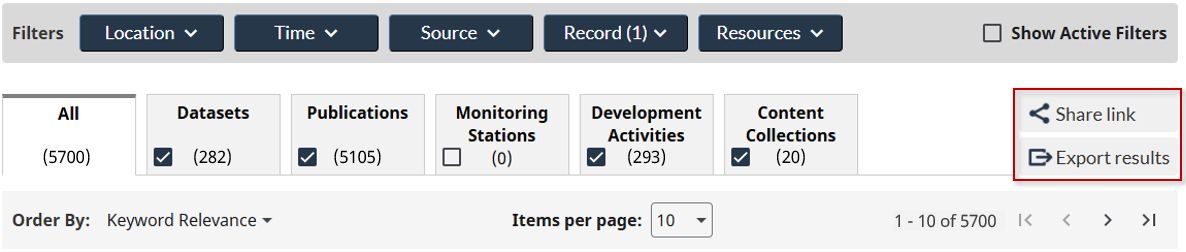
Share Link Tool: After preparing a Search Result Set using Keyword Search, there are times you may like to share this search with others so that they can reproduce what you’ve done. Alternatively, this can be used as a quick method to reproduce an important search after returning to OSDP. By clicking on the Share Link button to the right of the tabs, a special link is copied to the clipboard that can be pasted anywhere.
Export Results Tool: Starting on the current page of the selected Search Result Set tab, up to 1,000 records are written to a local file in the same order they appear in the list. This comma-delimited (CSV) file contains a summary of each record’s most popular Metadata Fields, that can be easily loaded into Excel for review and/or offline analysis.
Tip: Keeping Map Details
After building a Map from multiple sources, often a required take-away is to be able to cite all the layers and/or content that went into building it. Using the Retrieve Mapped Records link on the Map Tab creates a Search Result Set that includes all referenced OSDP records that went into building the map. After generating this list, the Export Results tool can be used to extract the full list of records to Excel, where the links to all the records along with their formal citations are itemized.
Result Set Items
Each record returned in the Search Result Set is represented by a block of information aimed at quickly providing sufficient highlights about what’s contained in the record, while providing quick access to the full details on the Metadata Page.
Looking at the left-aligned portion of a record, it contains:
- Hyperlinked Record Title: On click the record’s Metadata Page is presented, which includes access to all the record’s Metadata Fields, resource links, and functionality.
- Source: A clear view of where the record was sourced, including both the Contributor Organization and Contributor System.
- Time-relevance: Includes when the contributor initially published and last updated their record, in addition to the optional Time Coverage information if it was provided.
- Description: The first few lines of the description are presented, which can be expanded by clicking the more link at the bottom of the item.
- Hyperlinked Attached Resources: Resources available for view, download, or mapping are summarized at the base of the record summary. The provided hyperlinks will take you directly to the Resources tab of the Metadata Page for that record.
The right-aligned portion of each record contains:
- Content Category: A color-coded indication of the type of information this content represents, aligned with the same values that are noted on the Search Result Set tabs.
- Action buttons: A context-sensitive set of buttons that are applicable for the record. For example:
- Add to Map: For Datasets that include a mappable layer, allows the user to add the layer to the map in a single click from the Search interface.
- Map Area: For records that add relevant geometry and/or context to the map and zoom into an area for examination, allows the user to initiate this activity in a single click from the Search interface.
- Cite: Copies the record’s citation to the Windows clipboard.