
Keyword Search
One or more keywords and/or “quoted phrases” can be combined with a search condition to compare to the OSDP record contents, by providing the details and then clicking the Search button or pressing the Enter key. Multiple keyword search criteria can be prepared and each will be available for one-click modification or deletion in the Active Filters block. Alternatively, a search can be initiated with no keywords or Filters to return all contents of the OSDP repository.
Augment your query even further by complimenting it with one or more filters (accessed from the Filters bar) or by leveraging a Search Request that you previously built and saved (see the Search page help for more details on how these components fit together).
Search parameters are remembered within your browser session
Keywords, Filters, and Saved Search selection can be modified in any order, and the search results will change accordingly. The current search parameters will always be shown in the Active Filters block and will be preserved as you navigate throughout OSDP and return to the Search page. The only actions that will reset the search are:
- Pressing the Clear Search button to intentionally start a new search.
- Performing an OSDP action whose purpose is to initiate a new search. e.g., Requesting to Retrieve Mapped Records on the Map tab, starting a new search on the home page, or pre-populating the search and map with sample layers when requesting to do so from the Learn About Cumulative Effects or Learn About Development Activities pages.
Creating Effective Search Queries
Creating effective search queries starts with knowing key characteristics of the content you seek, and then understanding how to use the tools at your disposal to focus the Search Result Set. This section will cover the top 10 tips on how to effectively use the Keyword Search tool.
- Active Filters block summarizes search: Refer to the Active Filters block to understand the specific search criteria being used in the current search request, and to quickly access, update, or remove them.
- Recall common searches using Saved Search: The Save New button in the Saved Search block can be clicked to save your present search criteria, which can then be recalled from the drop-down in the same block to compliment any future search request. Further, the library of queries you build can be accessed via the Manage button, where they can be augmented to use any OSDP Metadata Fields (as opposed to just the common filters in the Filters bar) or leverage more complex conditions, copied and updated, or deleted if no longer required.
- Keyword Use: While keywords are not mandatory for your search (e.g., a search could utilize just Filters, or use nothing to return all records), they are a powerful means to limit the Search Result Set to records referencing specific words or phrases. Further, combining Keyword Search with a Keyword Relevance sort order in the Search Result Set permits those records with the most references to bubble to the top of the list.
- Search isn’t case-sensitive: e.g., searching for “Air Quality” or “air quality” returns the same result.
- Whole Word Compare: The search engine compares whole words in specific Metadata Fields (Title, Description, Keywords, Citation, Publisher, Creator, and Placename) to whole words provided in the keywords bar, subject to the search option selected.
- Multi-word Phrases: To consider a multi-word phrase as a single search condition, its essential it be specified as a “quoted phrase”.
- For example, if the keyword bar includes the unquoted Air Quality text then the search will look separately for records that contain the words “air” and “quality”, which could reasonably return records discussing Water Quality depending on the search option selected.
- Alternatively, if the keyword bar contained the quoted phrase “Air Quality” instead, then the search would look for records that contained the combined 2-word phrase “air quality” and the search results would be a closer match to the target.
- Search Options: The search option selected controls how the keywords are interpreted and has an enormous effect on the returned Search Result Set, because it controls how narrowly or broadly the provided keywords are interpreted. Specifically, producing from most to least specific search results:
- EXACT MATCH ALL: All identified words/phrases must be included in any given record exactly as specified for the record to be included in the Search Result Set. e.g., in an unquoted Air Quality example, each record must contain “air” AND must contain “quality”. Note that if the intent is to find all records with the phrase “air quality” instead, then the phrase must be enclosed in quotes.
- EXACT MATCH ANY: Any identified words/phrases must be included in any given record exactly as specified for the record to be included in the Search Result Set. e.g., in the unquoted Air Quality example, each record must contain either air OR quality.
- PARTIAL MATCH ALL: All identified words/phrases OR a stemmed version of each must exist in any given record for it to be included in the Search Result Set. As with the EXACT MATCH ALL above, this option uses an AND condition as well. By permitting stemming of the keywords, search can result in even more possible related hits. e.g., if you search for the two unquoted words Whale Migration, a simplified version of what the search engine will find would include records where they contain (whale OR whales OR whaling OR whaled) AND (migrate OR migrated OR migration OR migrates OR migratory).
- PARTIAL MATCH ANY: Any identified words/phrases OR a stemmed version of each must exist in any given record for it to be included in the Search Result Set. As with the EXACT MATCH ANY above, this option uses an OR condition as well. Using the same simplified Whale Migration example above, note the resulting underlined change in the search example: (whale OR whales OR whaling OR whaled) OR (migrate OR migrated OR migration OR migrates OR migratory).
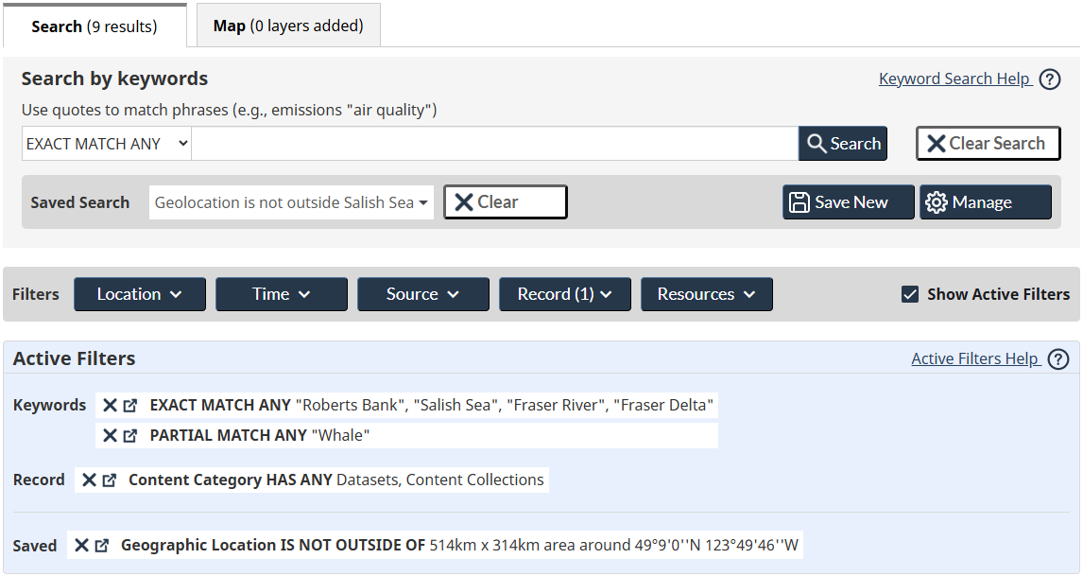
- Combine Search Conditions: Searches can be prepared using a combination of the conditions noted above, to combine different concepts. For example, perhaps you want to find records with very specific words, while also wanting to find records that talk about the same concept. In the example below, both text conditions need to be true for a record to be a match.
- EXACT MATCH ANY “Salish Sea” “Fraser Delta”
- PARTIAL MATCH ALL Whale Migration
- Noise words are removed from unquoted keywords: Imagine searching on an unquoted Ring of Fire only to return 100,000 records because it found every record with the word “of”. OSDP search filters out “stop words” or “noise words” like this from the search to restrict this from happening. As such, if we perform an EXACT MATCH ANY with an unquoted Ring of Fire, then search would find all records that contained “Ring” OR “Fire”. Alternatively, if “Ring of Fire” was quoted, then search will continue to match only records with that full 3-word phrase.
- Keywords and Filters are complementary: Combining keyword constraints with Filters and/or a Saved Search is a great way to surface records of interest in the Search Result Set. The Keyword Search is a strong mechanism for isolating a cross-section of records based on the content inside Metadata Fields that are freeform text, while filters mostly focus on further filtering content based on specifically assigned values.